Field Pro Bluetooth troubleshooting
The Field Pro app allows technicians to commission and service generators. Newer generator models with a Power Zone 200 controller must be commissioned before running in AUTO mode. Learn more here: How do I commission a generator in the Field Pro application?
Before you begin
The Cellular Connectivity Accessory (below) must be installed to establish a Bluetooth connection. This device contains the Bluetooth antenna.
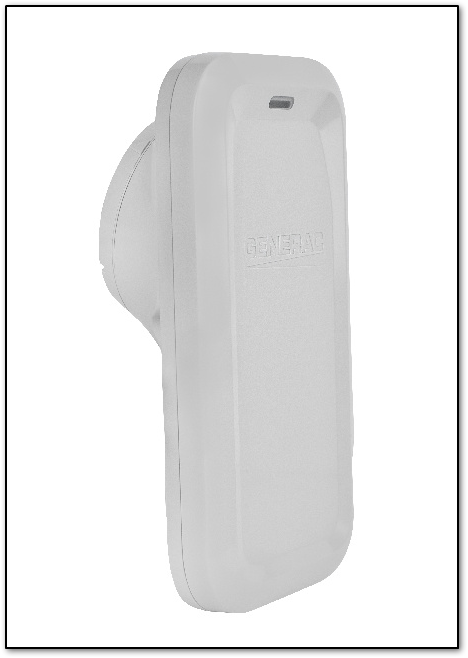
Environment
This article applies to generators with a Power Zone 200 controller using the Field Pro app.
Is the generator battery connected?
- Check that the generator battery is connected properly.
- Look for a red, green, or yellow LED that is lit or blinking on the generator control panel.
Note: If there are no lights on the control panel, the battery may not be connected. Confirm that the battery cables are secure.
Are you within 10 feet of the generator?
Move closer to the generator and try connecting again.
Is the green LED on the Connectivity Cellular Accessory lit, pulsing, or blinking?
- Check the LED status on the Connectivity Accessory.
- If the LED is off, unplug and reinsert the radio harness connector.
- After reconnecting, wait for the device to pulse slowly while it establishes a cellular connection.
- The LED should remain solid once connected.
- For more information, see: Reading the Connectivity Cellular Accessory LED status indicators.
Is the Connectivity Accessory plugged into the controller?
- Inspect the internal cabling of the generator for damage or disconnections.
- Replace the radio harness connector if needed.
Are there other nearby Bluetooth devices currently connected?
Make sure there are no other nearby Bluetooth devices already attempting to establish a connection with the generator.
Uninstall and reinstall the Field Pro app
Remove and reinstall the Field Pro app from your mobile device.